
How to Draft Consumer Debt Answers Faster by Using Styles in Microsoft Word
Learn how to use Microsoft Word's Styles feature to format consumer debt answers faster with consistent spacing, numbering, and page breaks.

Properly formatting a consumer debt answer often takes more time than deciding what affirmative defenses are needed or how to respond to each allegation from the complaint. Taking advantage of Microsoft Word's "Styles" feature can make formatting easier, faster and less error prone. This is especially true for jurisdictions like New York state that have complicated formatting requirements. In this article we'll go through common formatting issues and how to solve them with styles.
Styles
A "Style" in Microsoft Word is a named combination of visual properties like font, font size, line spacing, indent settings and more. Styles can be applied to pieces of text. Styles make it easy to apply consistent formatting across a document. They are particularly useful for legal pleadings like answers. If you create the right styles ahead of time, you won't have to worry about formatting at all when drafting Answers.
Styles Pane
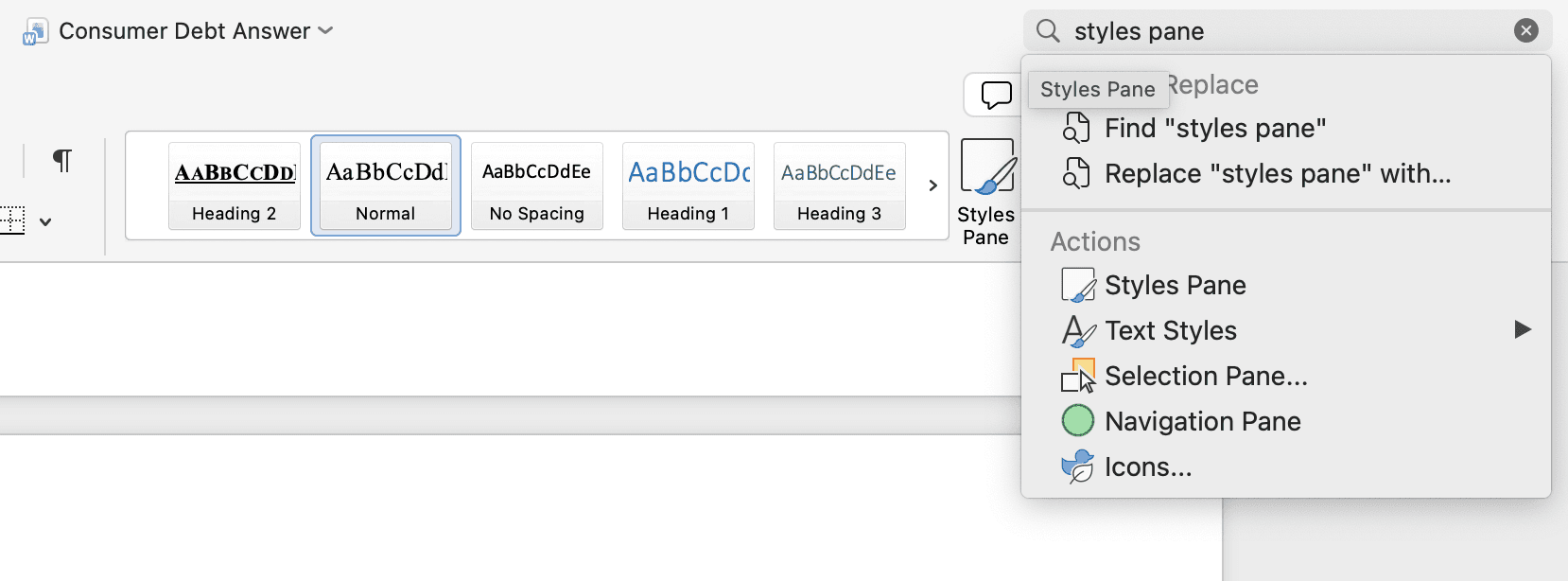
To view Styles in a document, you'll want to navigate to the "Styles pane". You can do this by searching for "styles pane" in the search bar in the top right:
The styles panel will open on the right side of the window and looks like this:
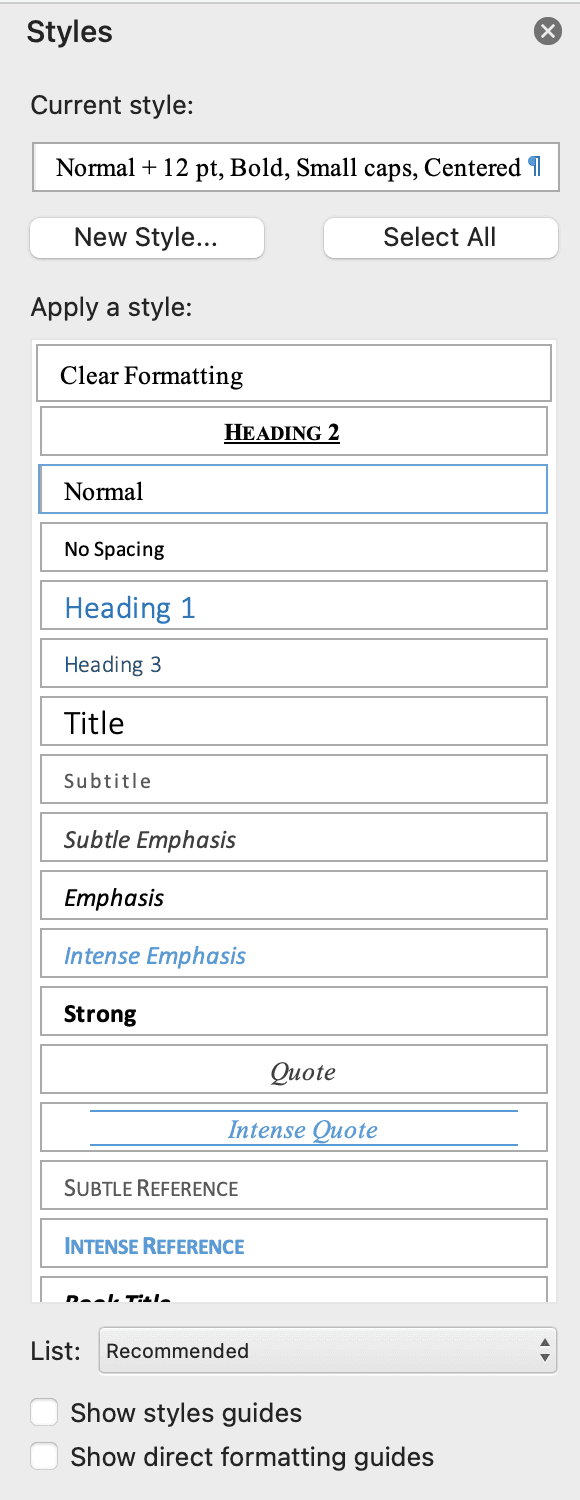
Word has a bunch of pre-built styles that are displayed here. I find it helpful to switch the "List:" dropdown at the bottom of the sidebar from "Recommended" to "Styles in use". This will remove all of the unused styles from the list. It is likely that most of them are unused if you've never visited this panel before.
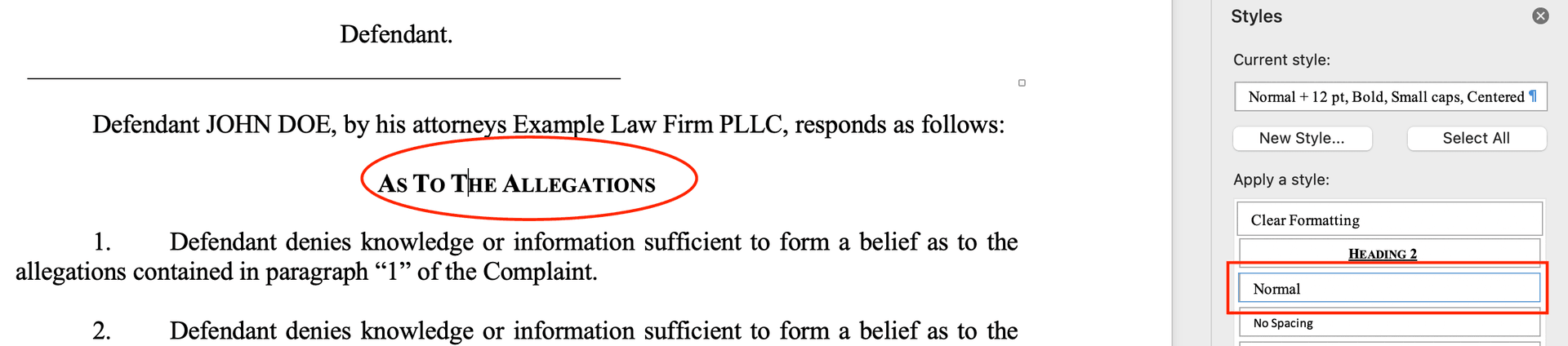
If you move your cursor around the document, you'll see the style that corresponds to the selected text highlighted in the styles pane. Here, you can see that the "As To The Allegations" text is using the "Normal" style.
Creating a Style
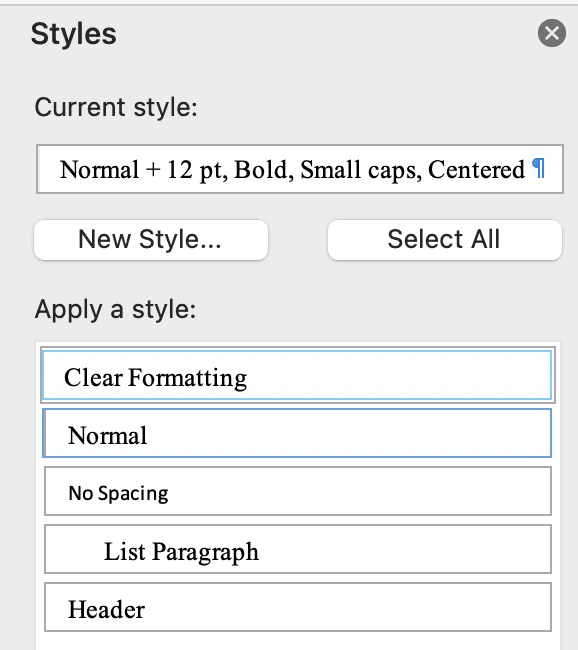
Note that "Normal" is a built in style. You can see at the top in the box under "Current style:" that we have made some modifications to the style. Namely: Bold, Small caps, Centered. Instead of relying on modifications to built in styles, we can create a new style for this type of header. We can do this by clicking "New Style…":
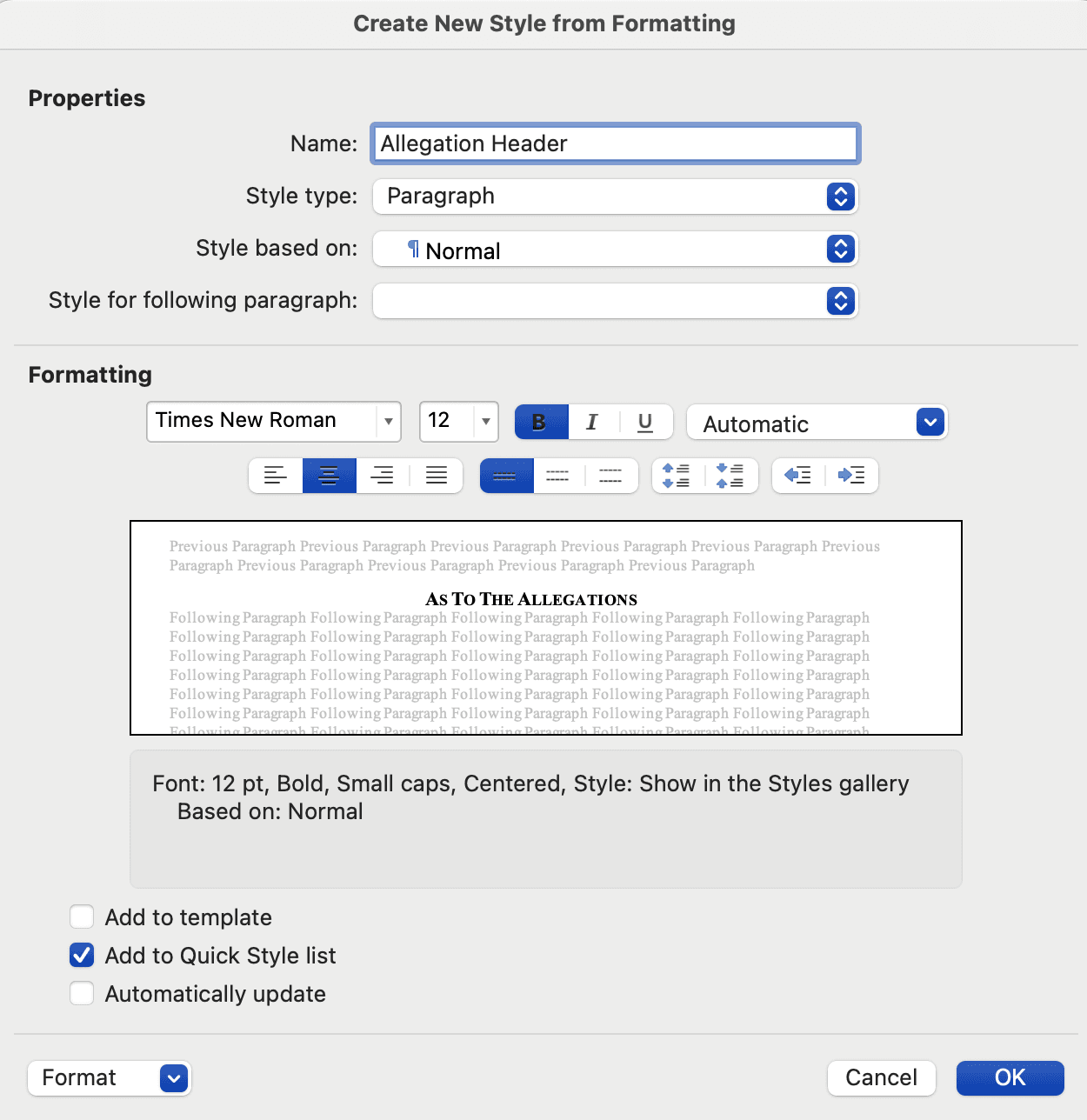
You can name this whatever you'd like. Just don't reuse the name of a built-in style, like "normal". I went with "Allegation Header". Once the style is created, you'll need to apply it to the headers. To apply the style, highlight each header that you want to apply the style to and in the styles pane click on the "Allegation Header" style row. You will likely have to switch the "List:" dropdown at the bottom to "Recommended" at first, since initially the new style will not be in use anywhere.
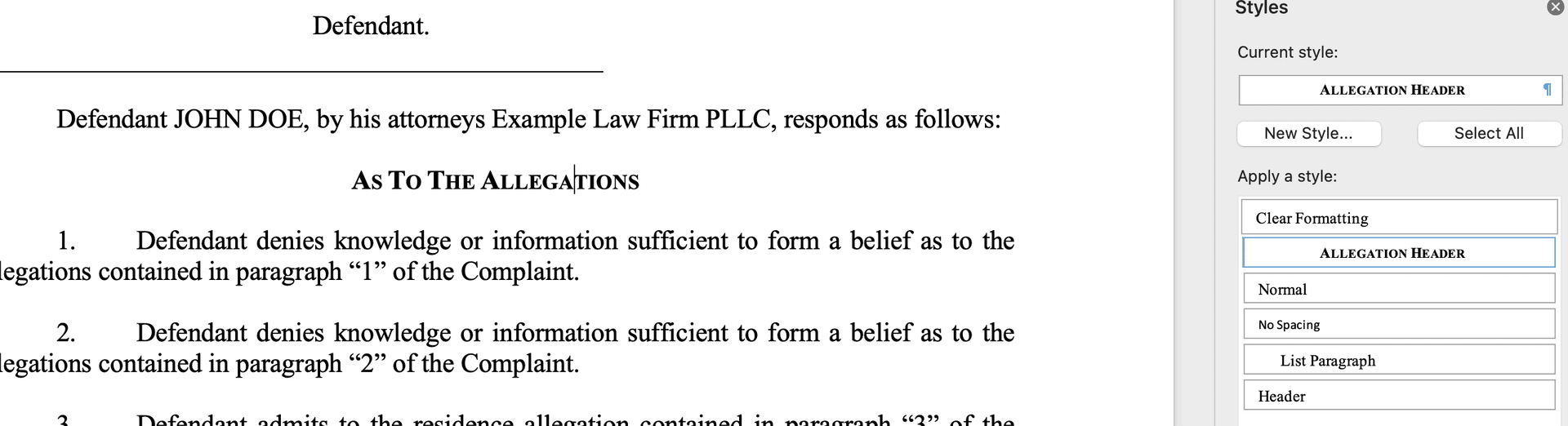
You'll know this worked when the new style is highlighted in the styles pane. The text that you applied the style to should appear completely unchanged.
Creating Styles for Numbered Lists
Numbered lists are extremely common in pleadings. Formatting numbered lists can be tricky. The spacing between each numbered item has to be consistent. The indent needs to be consistent. If a list item spans multiple lines, the indentation might change on the lines that follow the first. Lists might need sub bullet points. Luckily, all of these formatting quirks can be easily handled by Styles.
We'll first need to create a style. Like we did before with the Allegation Header style, move your cursor to a list paragraph. Then, in the styles pane, click "New Style":
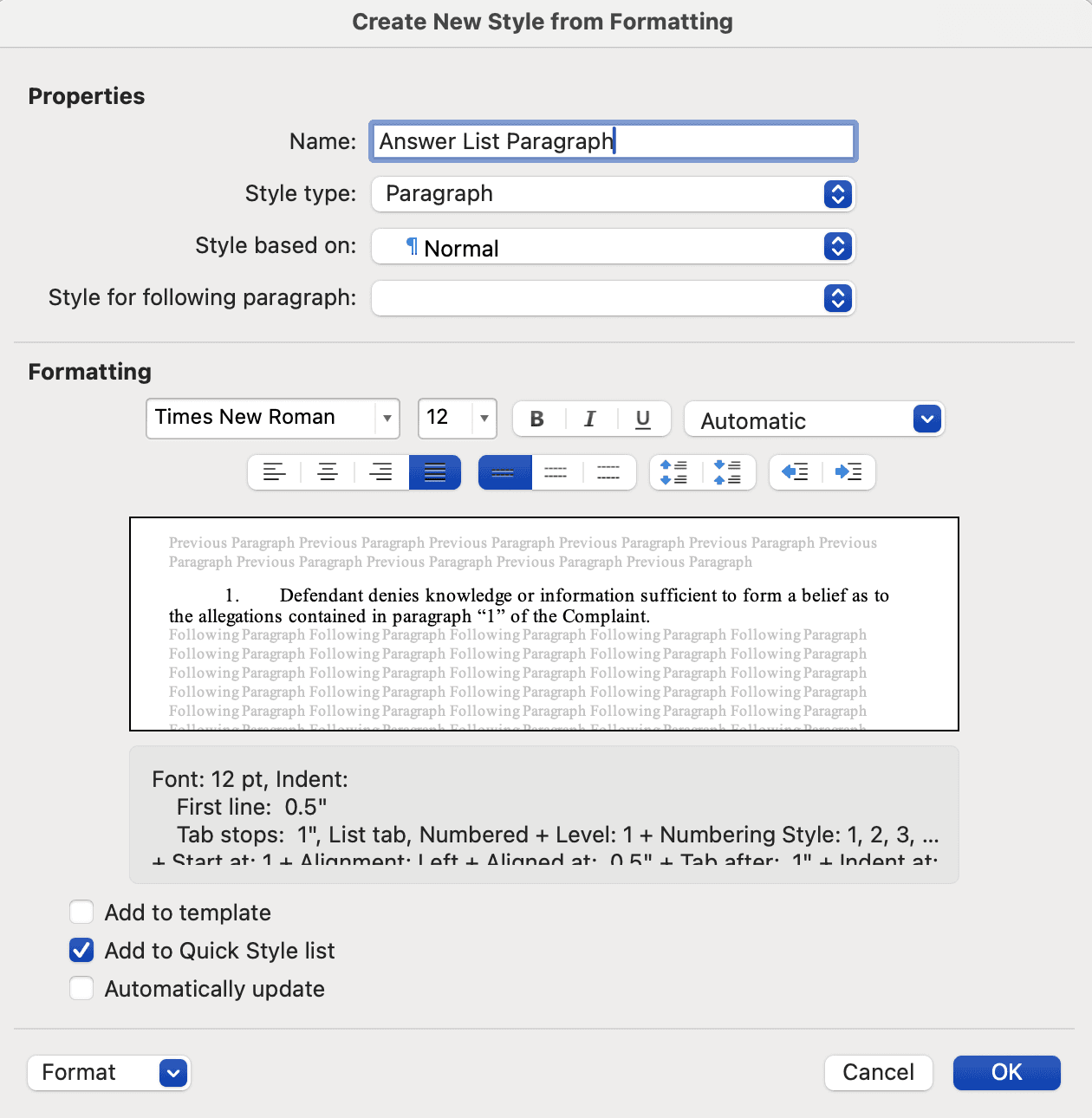
To set the line spacing between list items, change the "Format" dropdown in the bottom left of this window to "Paragraph".
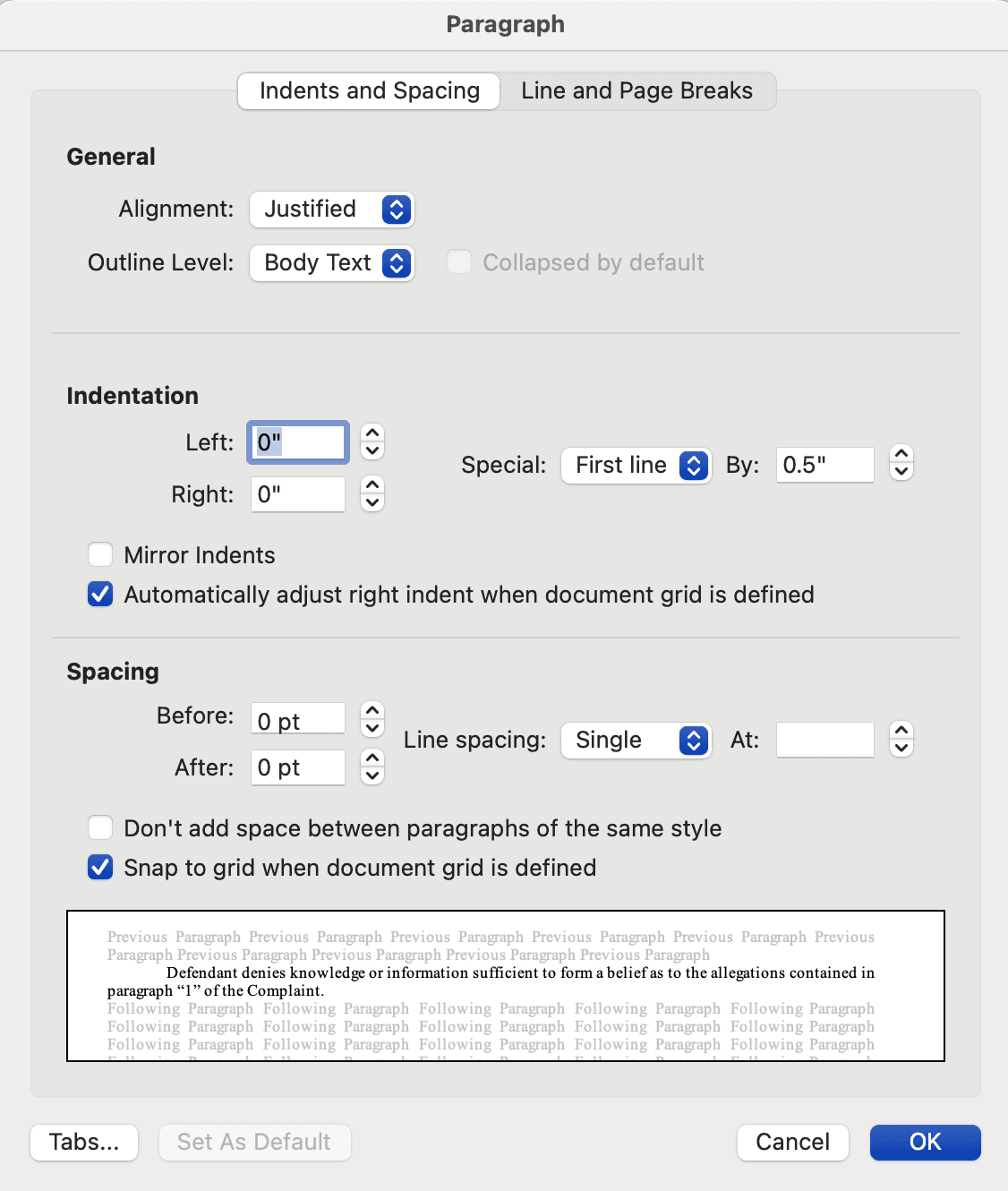
Then, make sure the "Indents and Spacing" tab is selected. Under "Spacing", we can set the "Before" or "After" fields to add newlines before or after each line with this style. If you are using 12pt font for this style, then setting a 12pt "Before" or "After" will make it appear as if there is a newline before or after each list item, respectively. Note that this is different from the Line spacing setting. The "Line spacing" settings controls how much space there is between the lines of a single list item. This comes into play if a list item is long. The "Before" and "After" settings control how much space there will be between list items. This is how you can get the appearance of single spacing within a list item, and double spacing between list items.
Depending on how your document was setup when you created the style, you may or may not need to attach this style to a multilevel list.
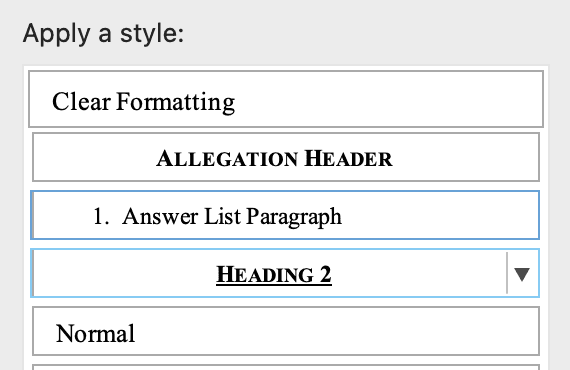
You'll know the style is attached to a multilevel list if you can see the number to the left of its name. In this case, "Answer List Paragraph" is indeed connected to a multi level list because we can see the "1." to the left of it.

To attach the style to a multilevel list, click on the list icon on the top bar and then "Define New Multilevel List" in the dropdown.
To confirm that the style is attached to the multilevel list, you'll need to open the full window.
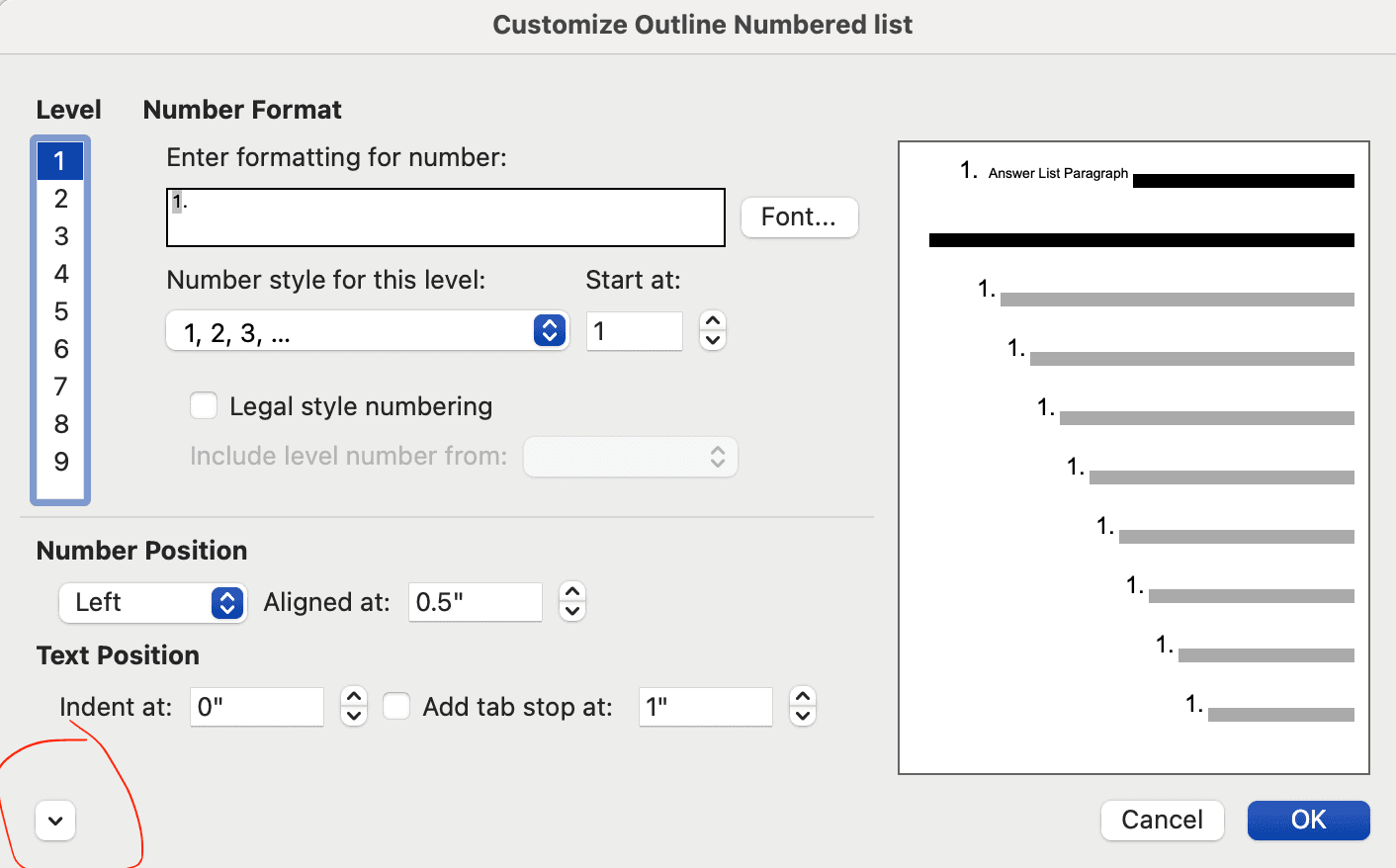
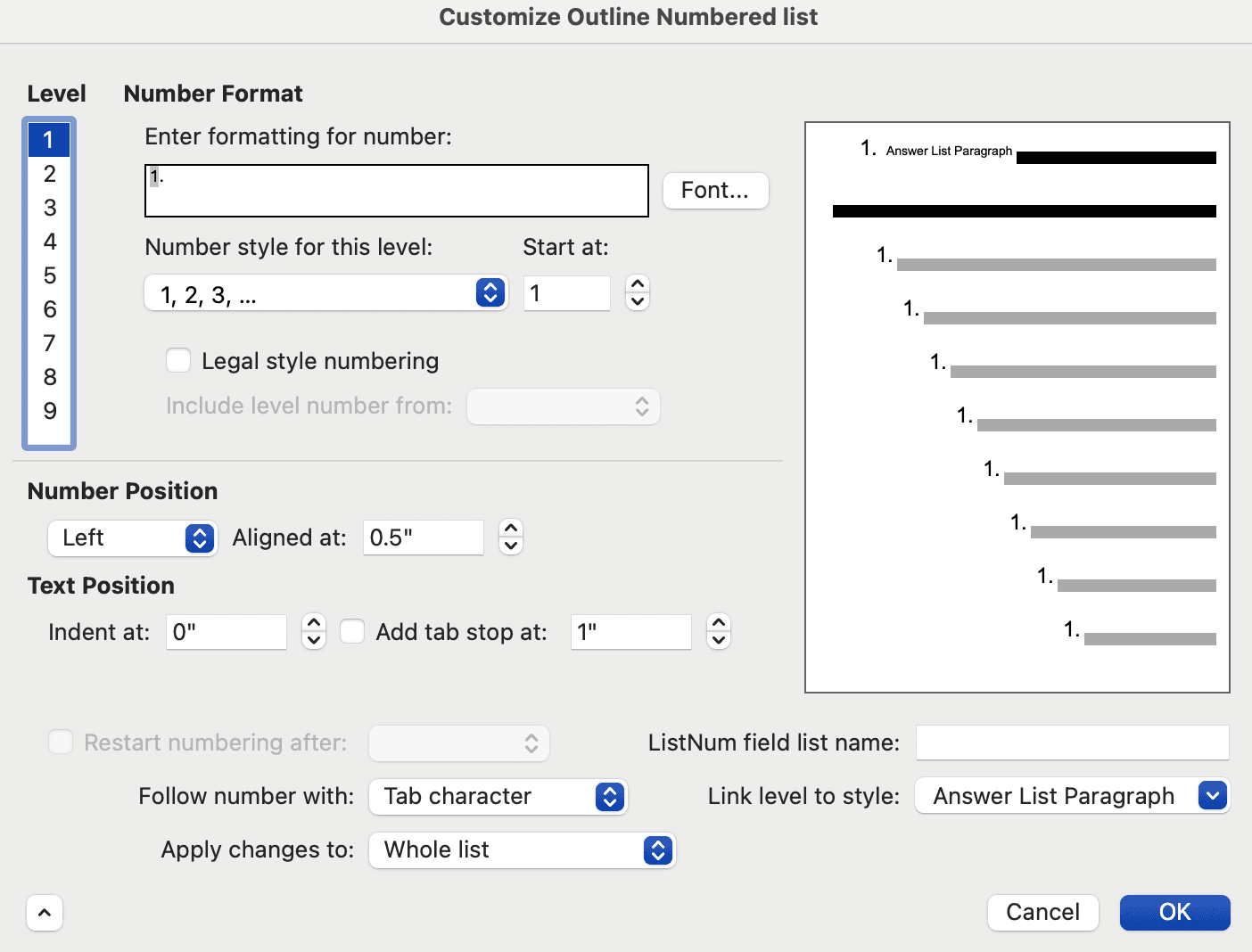
You will know that the style is attached to the list if its name appears in the "Link level to style" dropdown in the bottom right. If the style doesn't appear here, make sure to apply it with this dropdown. For each level of the multilevel list you can set a style. This is where you can control the indent settings. The preview on the right hand side gives a nice view of what the indent will look like. This is also where you can control the numbering style, see "Number style for this level". If you want to change the numbering to be roman numerals or letters, this is where you would do that.
Once the "Answer List Paragraph" style has been created and applied to a multilevel list, it becomes much easier to get the indentation and spacing correct 100% of the time. It also removes the need for manually adding invisible newlines between list items. Not only is this easier to maintain, but it also lets us fix another common issue with answers and other court pleadings: headers should always appear on the same page as the first paragraph in them. To illustrate this problem, look at the image below:
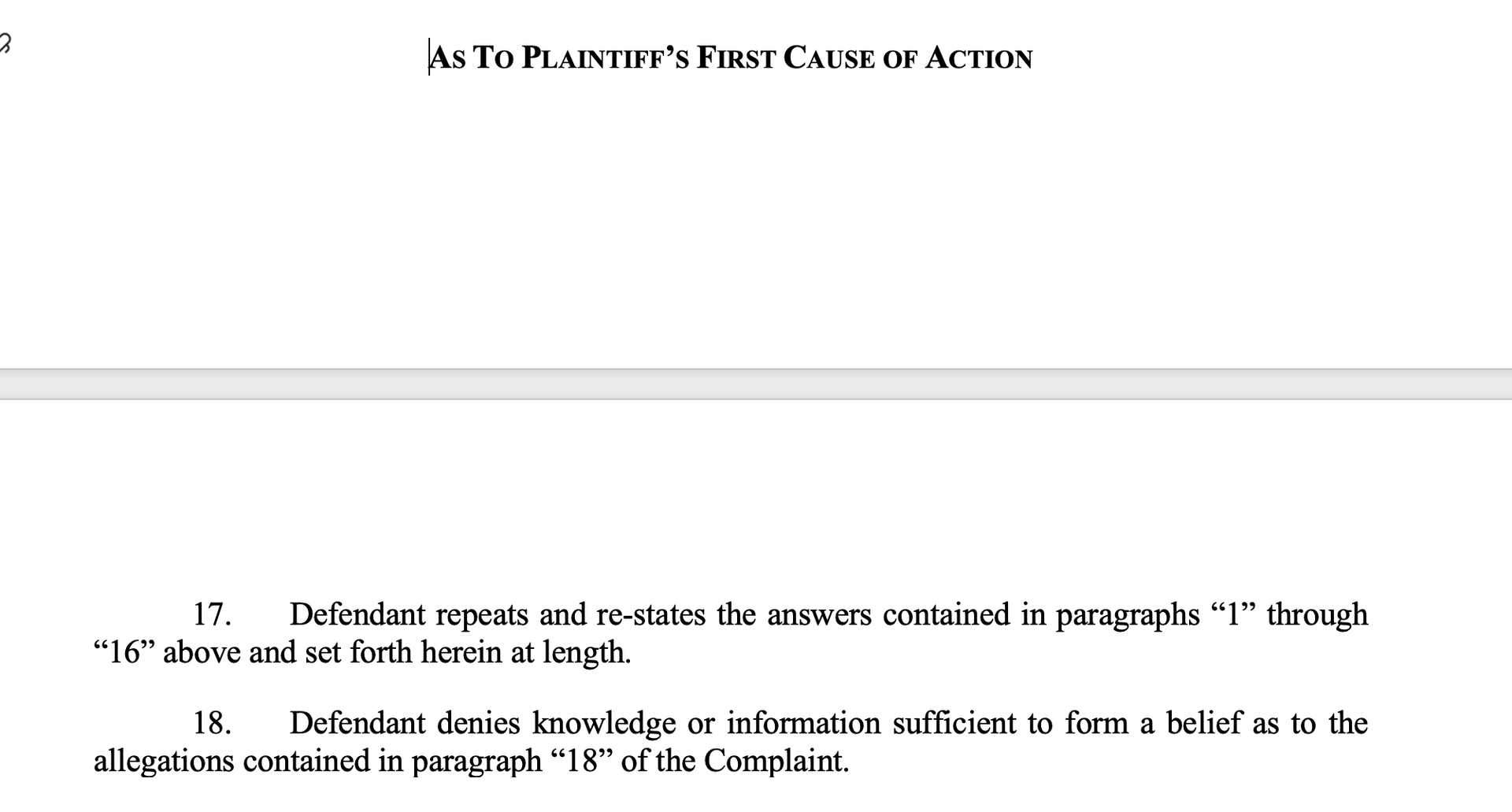
The header "As To Plaintiff's First Cause Of Action" is on a different page than the first paragraph in this section, paragraph number 17. One way to fix this is to manually add a newline above the header, but this is MUCH easier to fix with styles. First, confirm the header is using the "Allegation Header" style that we created. Next, open up the style for modification and go into the "paragraph" section. Select the "Line and Page Breaks" tab. Then, enable both "Keep with next" and "Keep lines together".
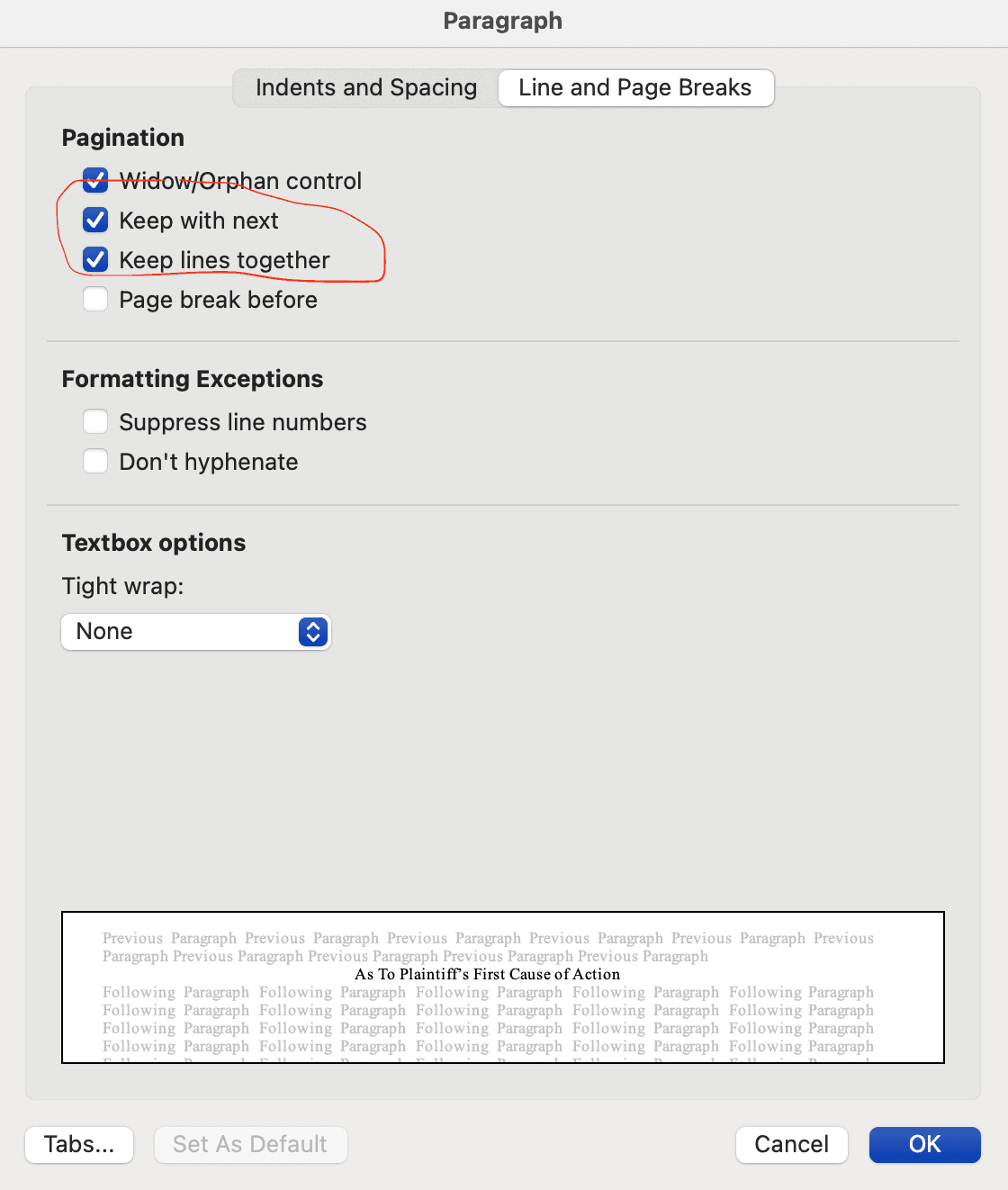
Then click OK. These settings will force Word to keep the header on the same page as the next line. Since the next line is the list paragraph (NOT a manually inserted newline - we don't need this anymore because we set the "Before" for the Allegation List Paragraph style to 12pt), this means Word will always make sure the header is on the same page as the paragraph that follows it. Now, when you use these styles, it is literally impossible for the header to appear on a different page than the next paragraph.
Conclusion
It can take a bit of time to define styles for each part of a pleading. But once you have them, it makes formatting documents in the future much simpler. They make it completely unnecessary to manually add newlines between list items, and they ensure headers always stay with their content. If you draft consumer debt answers regularly, investing the time to set up proper styles will save you hours in the long run.